How to Send Money from Canada to eSewa via Panda Remit
PandaRemit_OP - 2026-05-26 10:29:24.0 279

Step 1: Download and Log in
Download the Panda Remit app from the App Store or Google Play, or visit the official website
Web⬇️
https://www.pandaremit.com/localRemit?invtCode=116A1U&area=CAN&targetCountry=NPL&lang=ne
Download QR ⬇️ (Earn an extra $5 Cash Coupon)

Log in to your account or register if you are a new user.
Step 2: Choose Destination
Select Nepal as your receiving country.
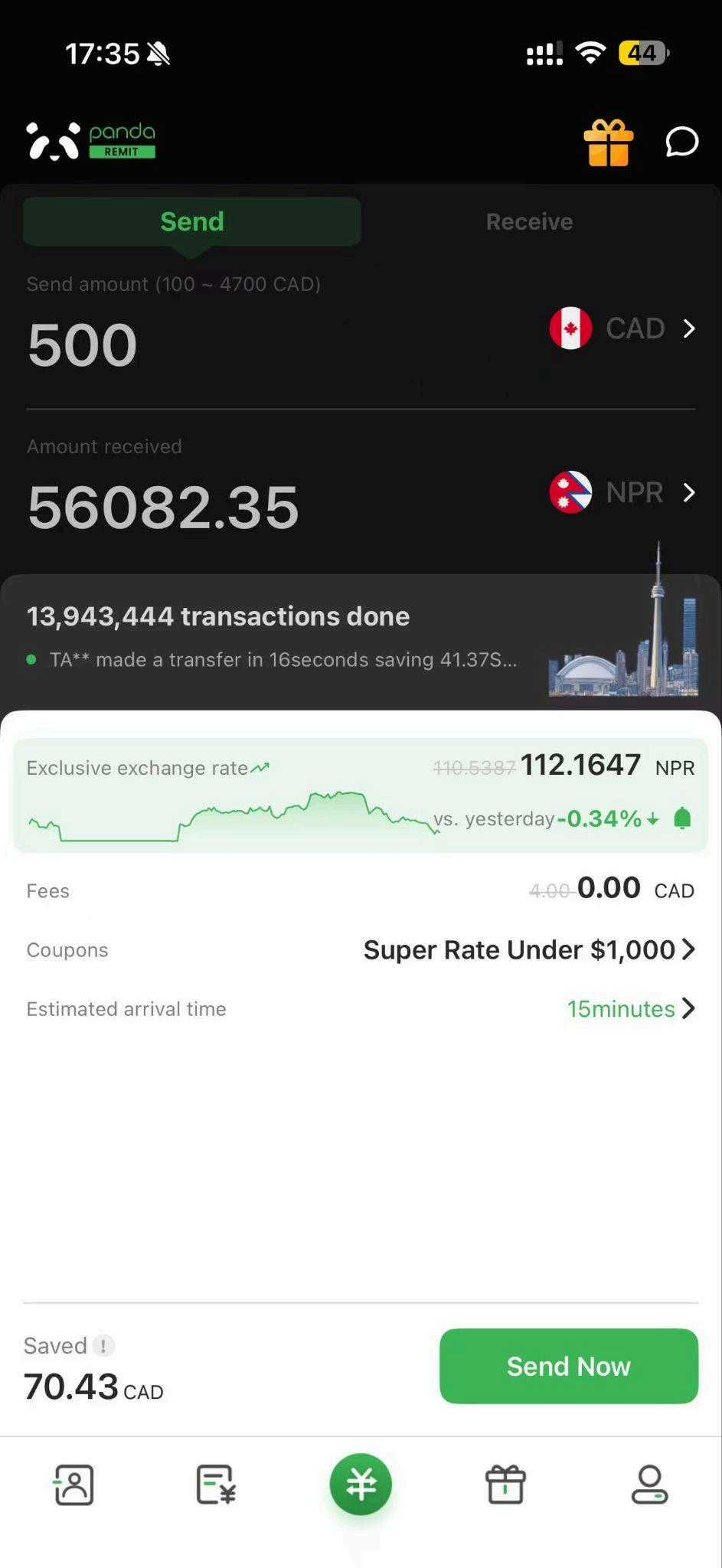
At this stage, you can also check whether there are any available coupons or promotional discounts that can be applied to your transfer.
Don’t forget to use your VIP Rate Coupon for the best rate on your first transfer!
After confirming your order details, click “Send Now” to proceed with the transfer
Step 3: Complete Account Verification
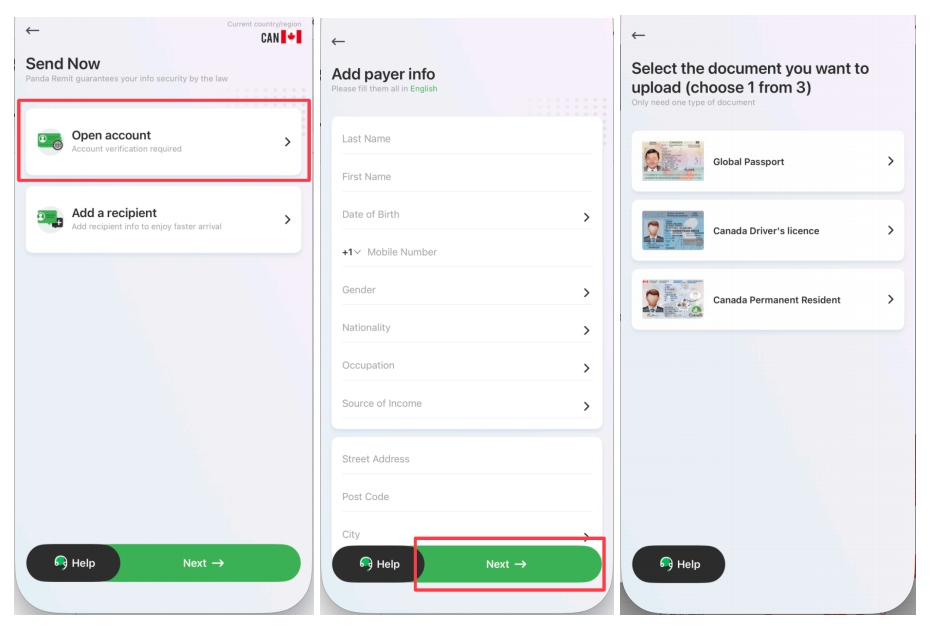
Due to regulatory requirements, you are required to complete identity verification before sending money. Click “Open Account” and fill in your personal information as requested.
After completing the information, you will be directed to the document upload page. You can choose your preferred ID type, including:
● Passport
● Canadian Driver’s Licence
● Canadian Permanent Resident Card
Please ensure that:
● The document is an original copy (screenshots or photos taken from a screen are not accepted)
● The image is clear and complete
● The document is valid and not expired
Step 4: Select the Recipient
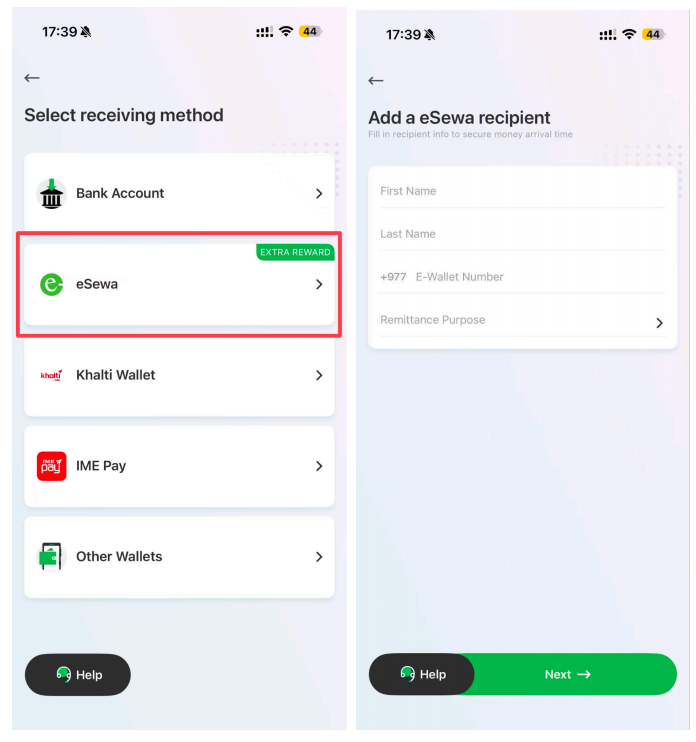
Then choose the receiving method:
● eSewa (Top Pick)
● Bank Deposit
● Other E-wallet (Khalti Wallet, IME Pay, and so on)
Fill in the recipient’s details carefully:
● Full name (must match the bank account)
● Mobile number
Please make sure all information is correct to avoid any delays.
Step 5: Confirm Order and Make Payment
After completing the recipient details, click “Next” to review your order information. If everything is correct, click “Send Now” to proceed.
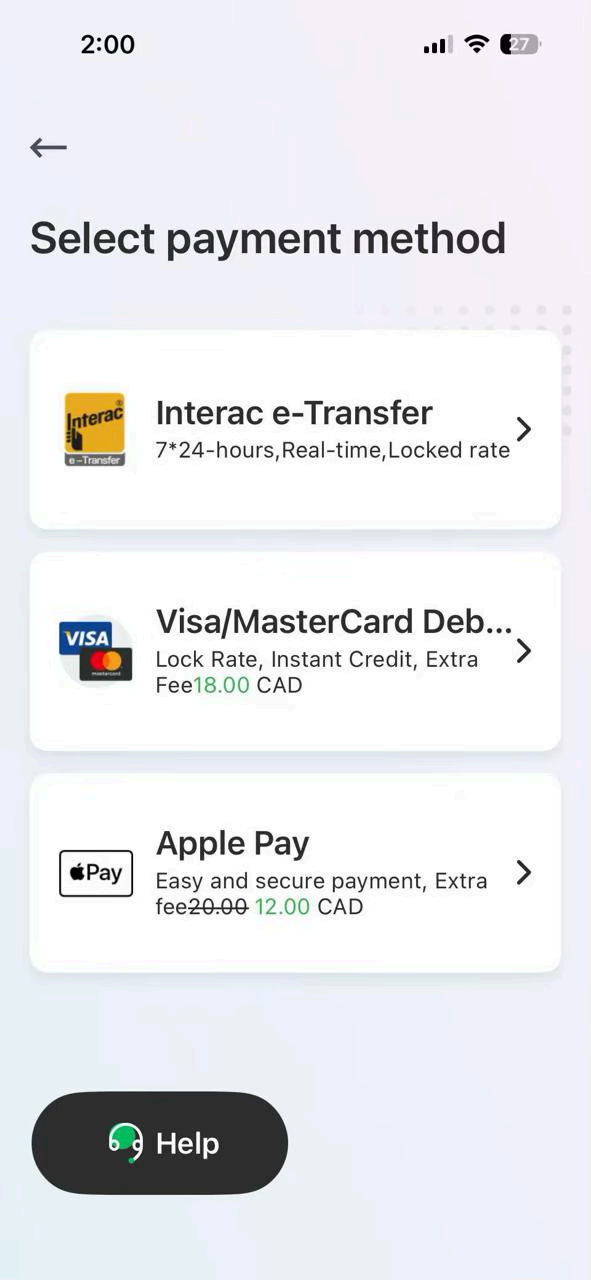
Then select your preferred payment method. In Canada, the available payment options include:
● e-Transfer
● Debit Card
● Apple Pay
We recommend using e-Transfer for a faster and more convenient payment experience.
Step 6: Confirm and Send
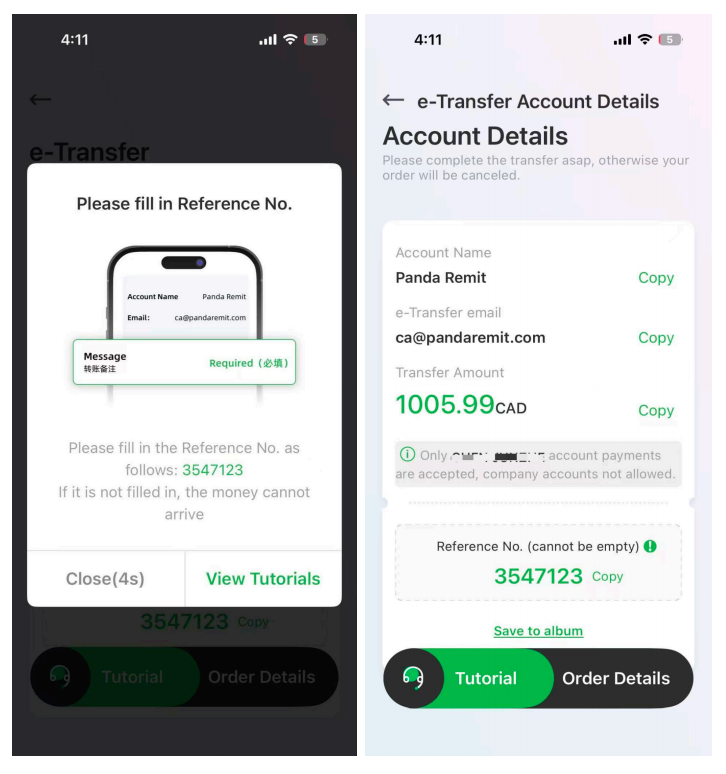
For example, if you select e-Transfer as your payment method, please make sure the recipient e-Transfer email and your reference number are correct. Then, open your banking app and complete the payment via e-Transfer.
Step 7: e-Transfer Guide
While the exact steps may vary depending on your bank, sending CAD via Interac e-Transfer is usually quick and easy.
Simply set up your transfer and select Interac e-Transfer Request Money as your payment method. Then, follow the steps below:
1. Open your Canadian mobile banking app and select Interac e-Transfer.
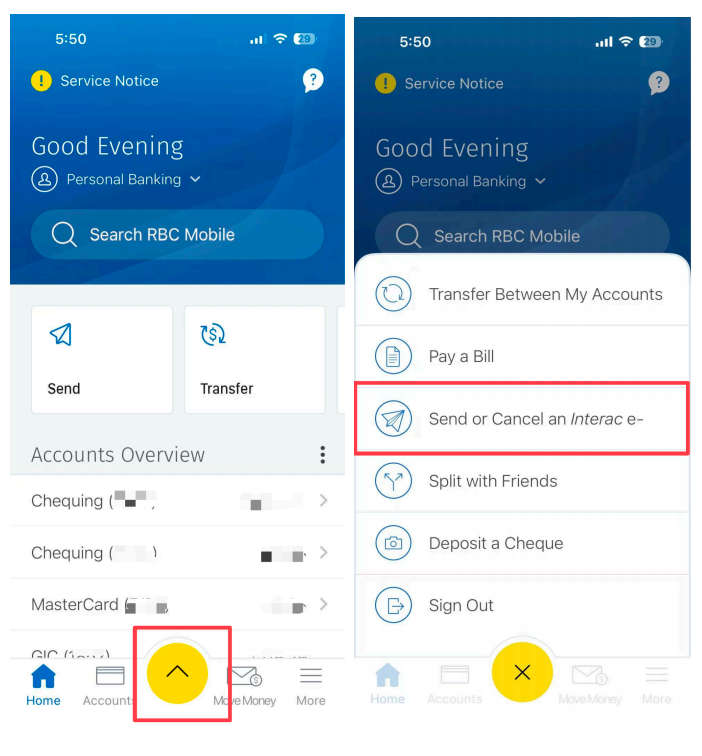
2. Enter Panda Remit’s Interac e-Transfer account details
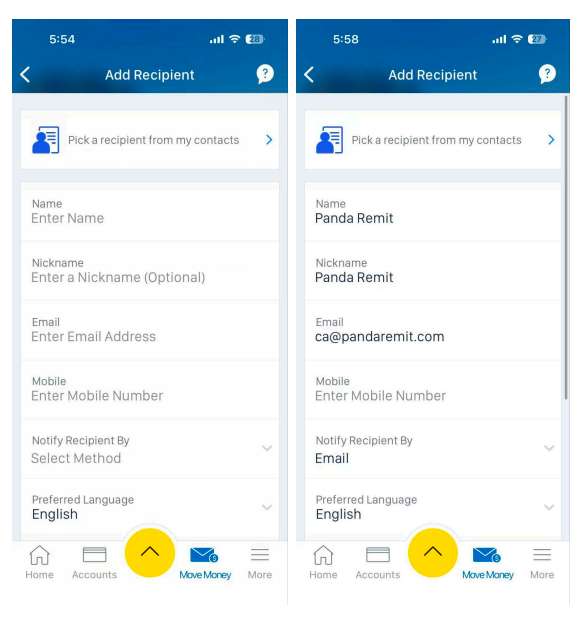
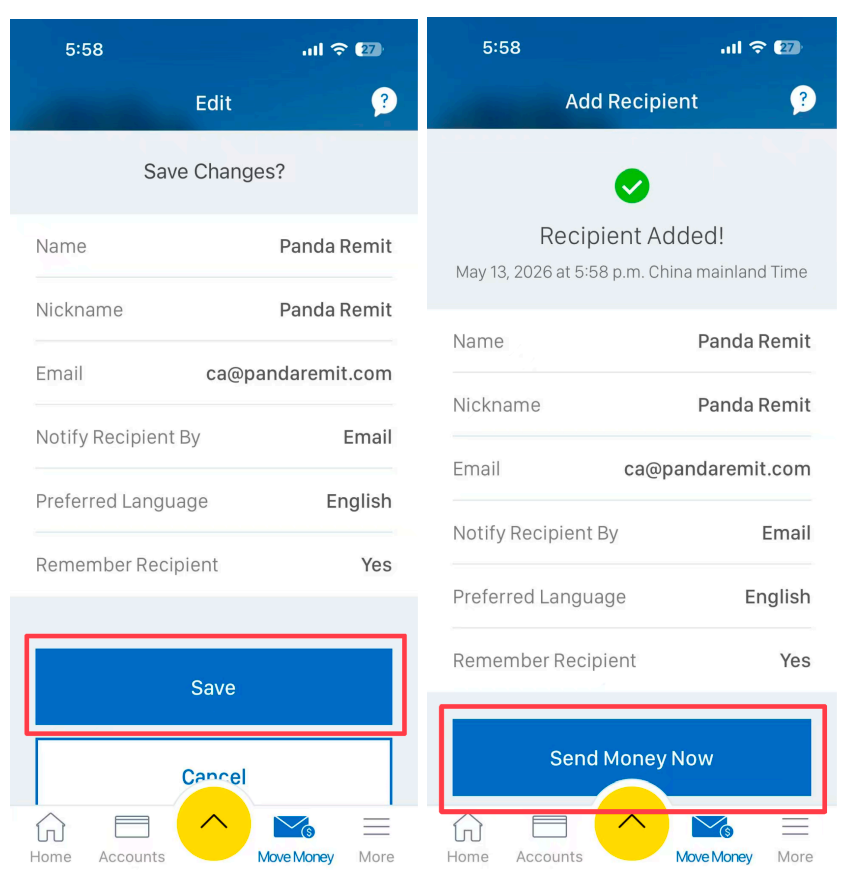
3. Tap “Save” to save Panda Remit as a recipient, then tap “Send Now” to complete the payment
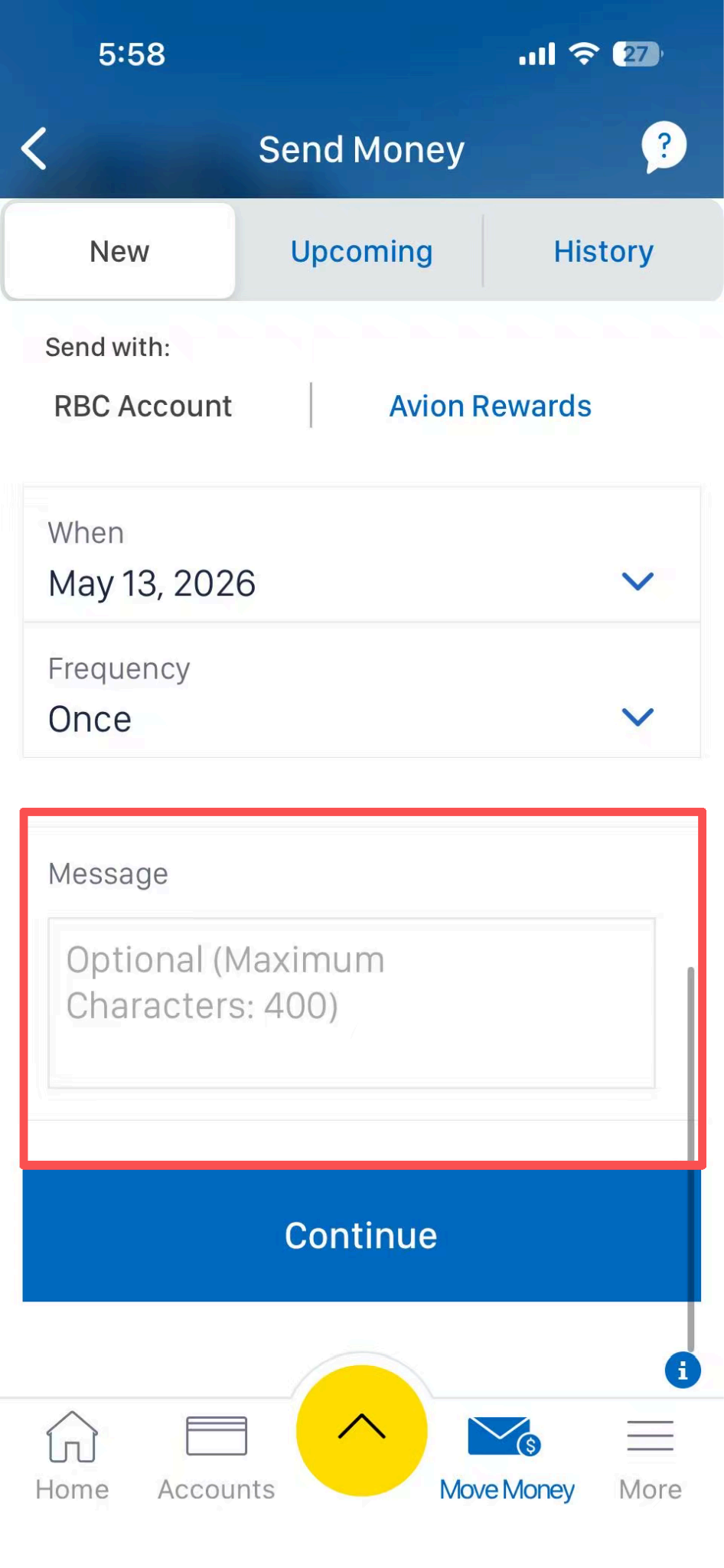
4. Don’t forget to enter your reference number in the message field to help us process your payment faster.
Step 8: Track Your Transfer
You can track your transfer anytime in the app under “Order Records”. You will also receive notifications when the money is:
● Processing
● Sent
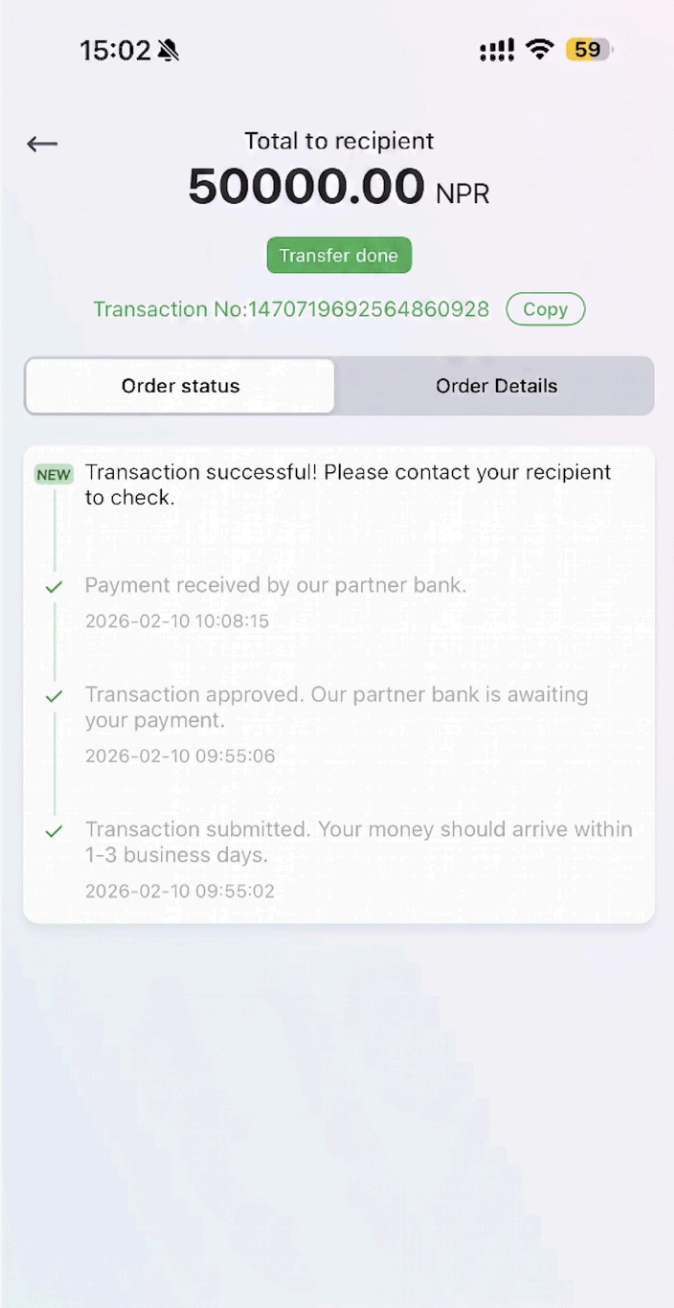
● Received by the recipient